Scheduling Messages

Set up automated messages, reminders, and notifications.
Overview
The scheduling feature allows you to:
- Send one-time reminders at a specific date and time
- Create recurring messages at fixed intervals
- Set up cron-based schedules for complex timing
Quick Examples
One-Time Reminder
"Remind me to review the report tomorrow at 9am"
Daily Standup Reminder
"Schedule a daily message at 9am on weekdays saying 'Time for standup!'"
Weekly Summary
"Send a message every Friday at 5pm reminding the team about weekly reports"
Schedule Types
1. One-Time (once)
Sends a single message at a specific date and time.
Use for:
- Meeting reminders
- Deadline alerts
- Follow-up prompts
Example: "Remind me next Monday at 2pm about the design review"
2. Recurring (recurring)
Sends messages at fixed intervals.
Use for:
- Regular check-ins
- Periodic updates
- Health checks
Example: "Send a status check every 2 hours"
3. Cron-Based (cron)
Uses cron expressions for complex schedules.
Use for:
- Weekday-only schedules
- Specific days of the week
- Multiple triggers per day
Common Presets:
| Schedule | Description |
|---|---|
| Weekdays at 9am | Monday through Friday at 9:00 |
| Mondays at 10am | Weekly on Mondays |
| Fridays at 5pm | End of week reminder |
| Every hour | Hourly check-ins |
Template Variables
Use dynamic values in your messages:
| Variable | Example Output |
|---|---|
{{date}} | 2026-01-12 |
{{time}} | 14:30 |
{{day}} | Monday |
{{month}} | January |
Example Template:
📊 Daily Update for {{date}}

Good morning! It's {{day}}.
Time to check your sprint board!
Managing Schedules
Via Dashboard
- Go to app.example.com
- Navigate to the Schedules tab
- View, edit, or delete your scheduled jobs
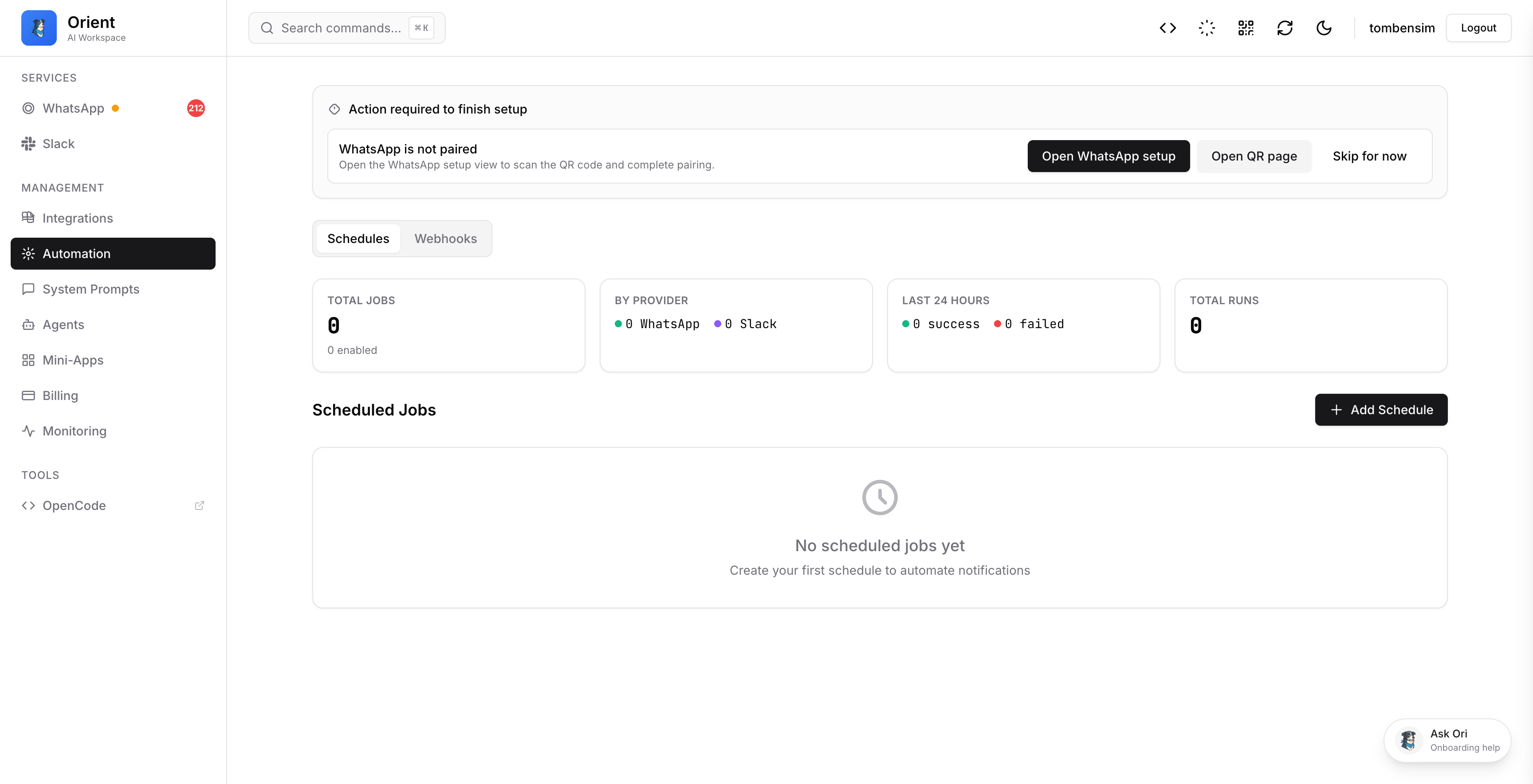
Via Chat
Ask the AI to help you manage schedules:
- "Show my scheduled messages"
- "Cancel the Friday reminder"
- "Update the standup message to 9:30am"
Schedule Status
Each scheduled job shows:
| Status | Meaning |
|---|---|
| Enabled | Actively running |
| Disabled | Paused, won't trigger |
| Next Run | When it will trigger next |
| Last Run | When it last ran |
Best Practices
1. Use Descriptive Names
❌ "Reminder 1"
✅ "Daily Standup Reminder - AI Team"
2. Test Before Production
Use "Run Now" in the dashboard to test a schedule before relying on it.
3. Consider Timezones
All schedules use the configured timezone (default: Asia/Jerusalem). Specify if you need a different one.
4. Keep Messages Concise
Scheduled messages should be actionable and to the point.
Limitations
- Minimum interval: 1 minute (sub-minute not recommended)
- Message length: Standard WhatsApp/Slack limits apply
- One-time jobs: Automatically disable after running
Troubleshooting
Message Didn't Send
- Check the job is enabled in the dashboard
- Verify the target chat/channel exists
- Look for errors in the run history
Wrong Time
- Confirm the timezone setting
- Check if you used AM/PM correctly
- Verify the cron expression in the dashboard
Duplicate Messages
- Check for multiple active schedules with similar settings
- Review the run history for duplicates