Connect via WhatsApp

Get started with Orient on WhatsApp in just a few minutes.
Prerequisites
- A smartphone with WhatsApp installed
- Access to the Orient dashboard
Step 1: Create a Bot Group
Before pairing, create a dedicated WhatsApp group for the bot. This needs to be a single-person group (just you):
- Open WhatsApp on your phone
- Tap New Group
- Add any contact temporarily (you'll remove them in step 5)
- Name the group "Orient" or "Ori Bot" and create it
- Open the group info and remove the other person — you should be the only member
- This private group will be where you interact with the bot
Orient uses a permission system where the bot only responds in explicitly approved chats. By creating a single-person group, you ensure the bot only responds to you. If you enable write access on a multi-member group, the bot will respond to everyone — which may not be what you want.
Step 2: Open the Dashboard
Navigate to your Orient dashboard and locate the Workspace Setup panel.
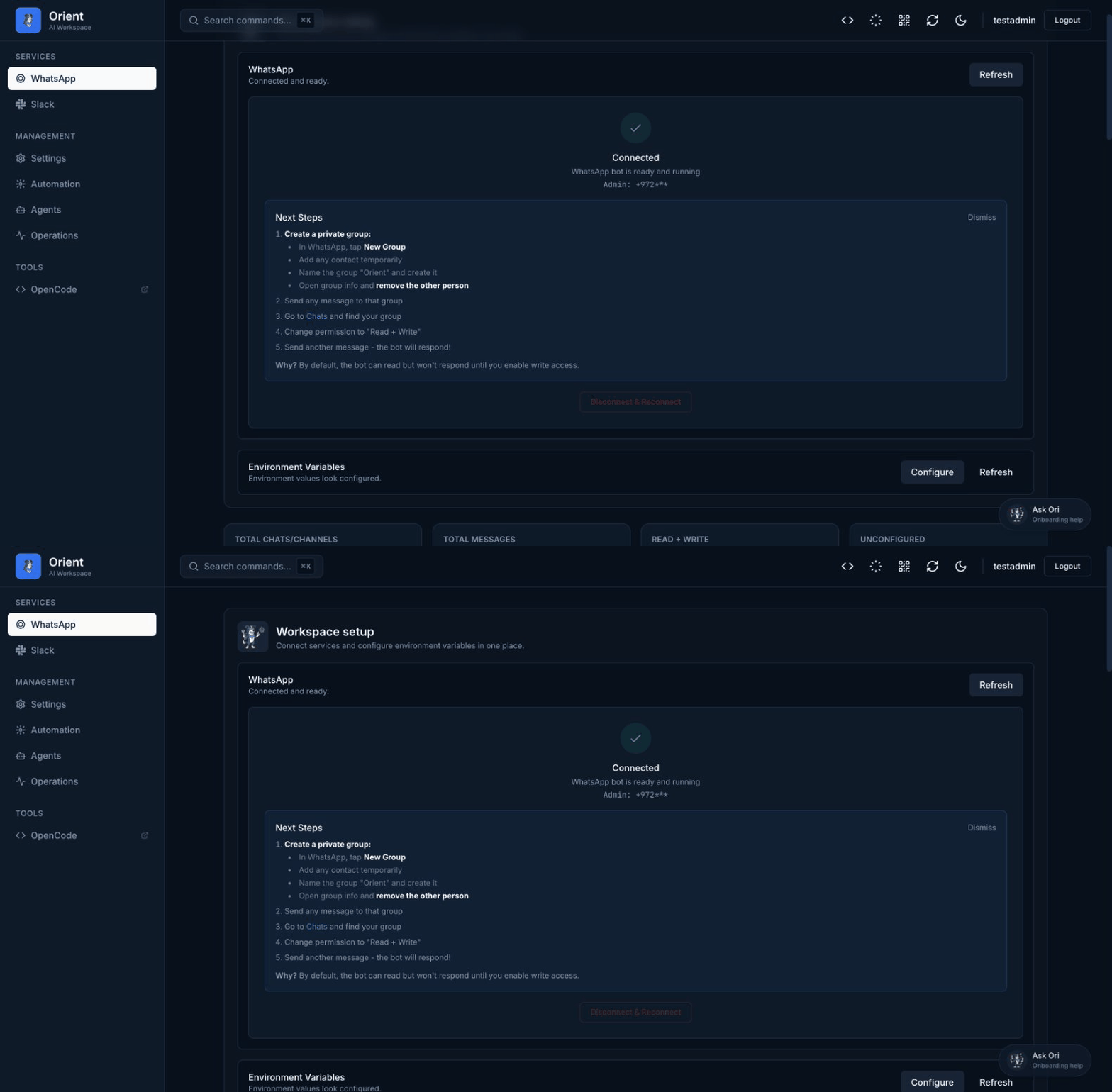
Step 3: Choose Pairing Method
You have two options:
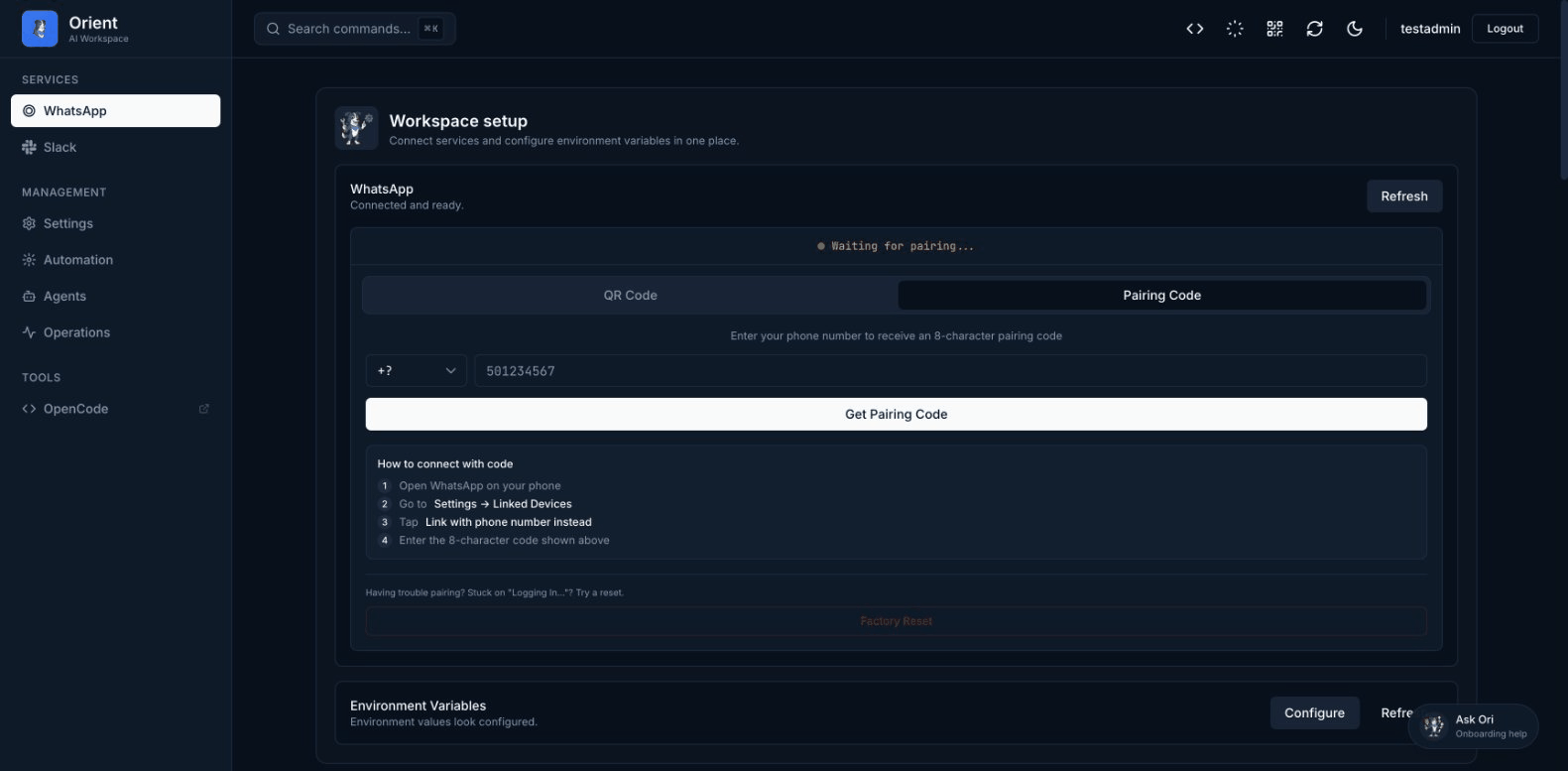
Option A: Pairing Code (Recommended)
- Select your country code from the dropdown (e.g., 🇺🇸 +1, 🇮🇱 +972)
- Enter your phone number without the country code
- Click Get Pairing Code
- You'll receive an 8-character code (e.g.,
ABCD-1234)
Option B: QR Code
- Click Show QR Code
- A QR code will be displayed on screen
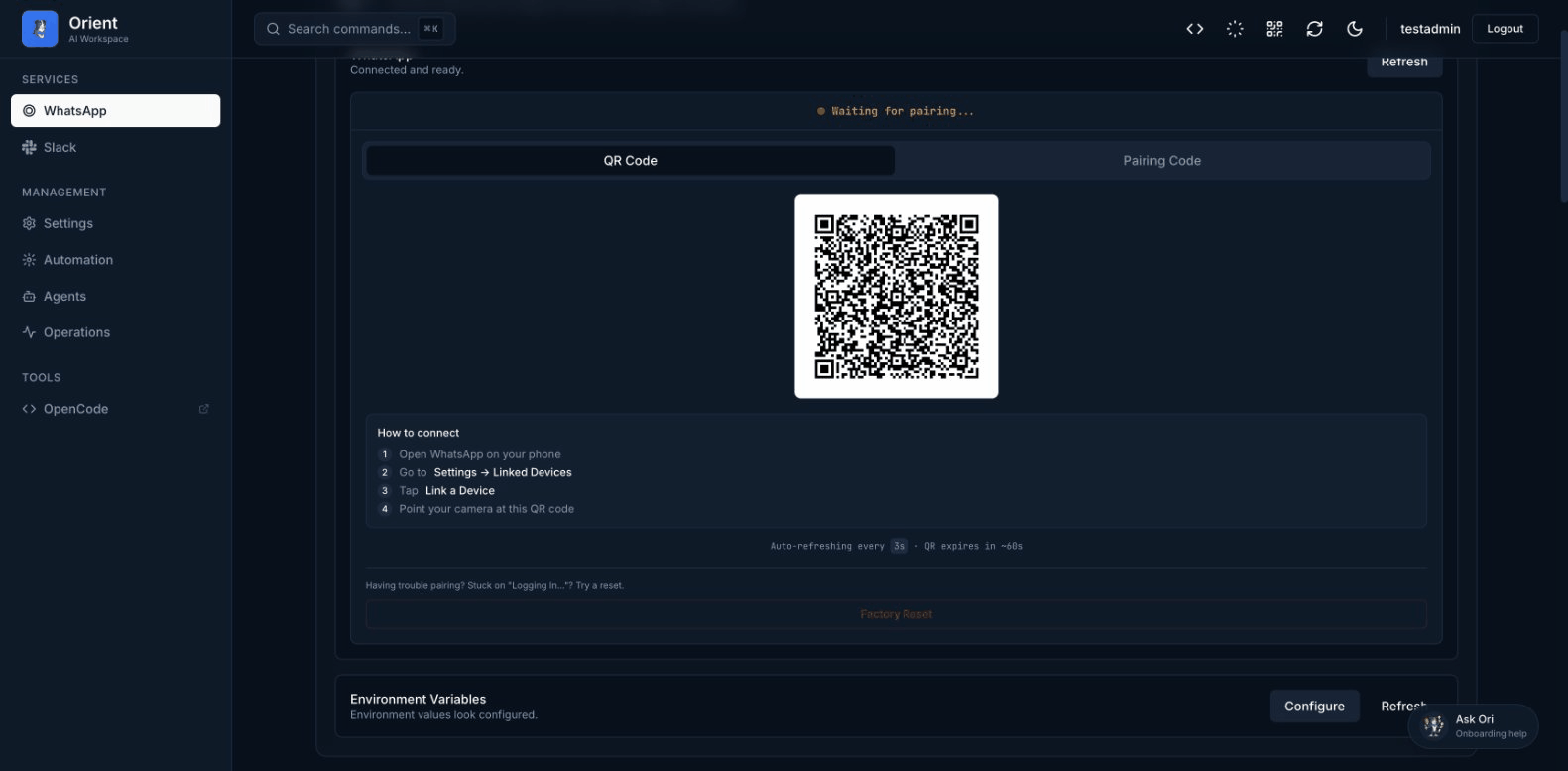
The QR code refreshes every 60 seconds. If it expires, simply click to refresh it.
Step 4: Link Your Phone
On your phone:
- Open WhatsApp
- Go to Settings, then Linked Devices
- Tap Link a Device
- Choose your method:
- Pairing Code: Tap Link with phone number instead and enter the code
- QR Code: Scan the QR code displayed on the dashboard
Step 5: Wait for Sync
After scanning the QR code or entering the pairing code:
- Syncing: You'll see a "Syncing WhatsApp Data" message with a progress indicator
- Keep the page open and don't close WhatsApp on your phone until sync completes
- For accounts with many chats, this may take a moment
Step 6: Verify Connection
Once sync completes, the dashboard will show Connected status. Your phone number will be automatically detected and saved.
Step 7: Activate the Bot Group
Now you need to give the bot write permission to your group:
- Send a message to your "Ori Bot" group. This registers the group in Orient's system
- Open the Dashboard, then go to the Chats tab
- Find your bot group in the list
- Change the permission from Read Only to Read and Write
- Send another message to the group
The bot is now live and will respond to your messages!
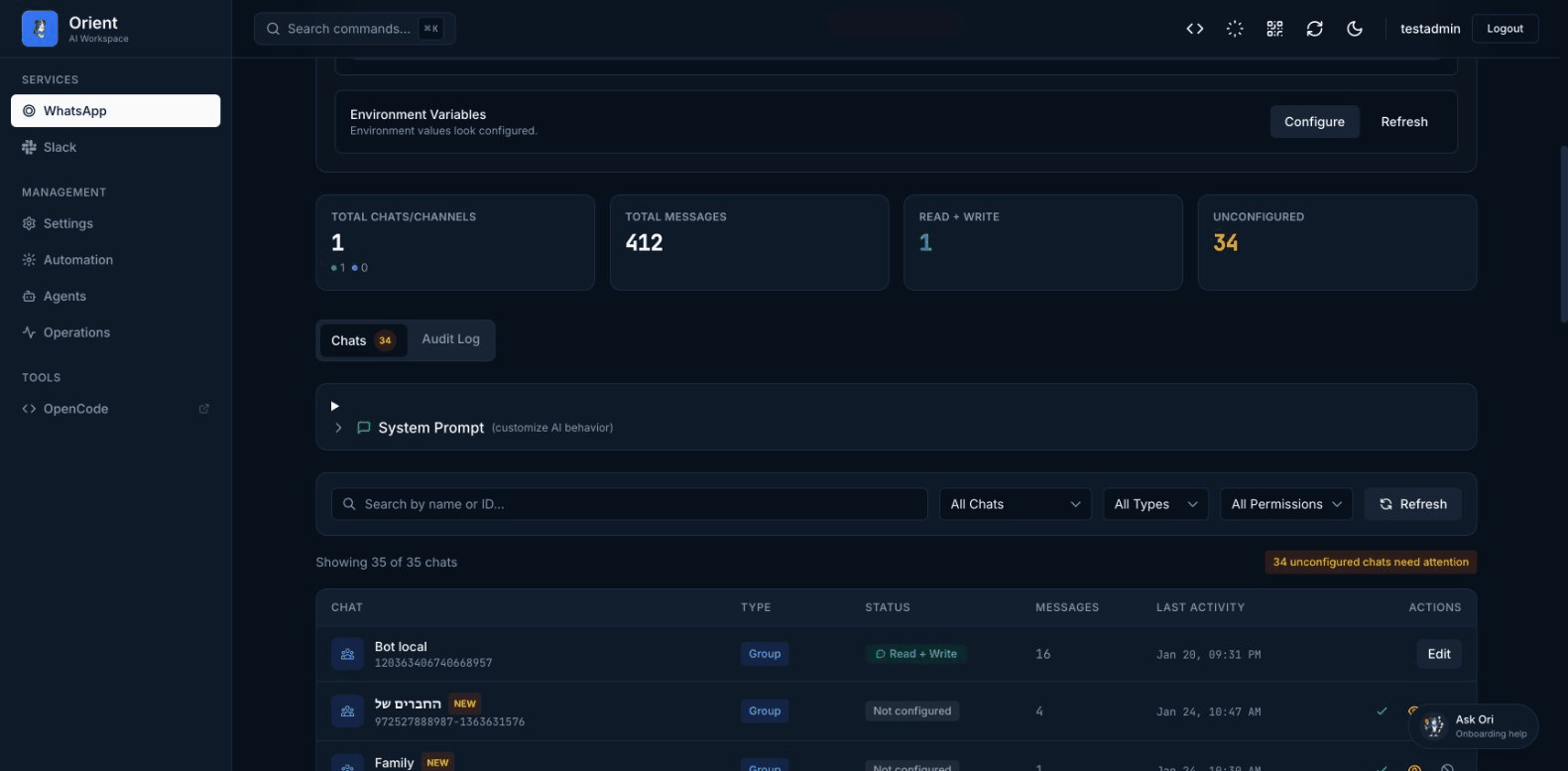
- Ignored: Messages are not stored or processed
- Read Only: Messages are stored but bot does not respond
- Read and Write: Bot will respond to messages in this chat
If you try to enable Read and Write on a group with multiple members, you'll see a warning dialog. Orient will respond to anyone who sends a message to that group — not just you. For private bot conversations, use a single-person group.
Using Orient on WhatsApp
Starting a Conversation
Simply send a message to your bot group:
Hi! What can you help me with?
The AI Assistant will respond with information about its capabilities.
Features Available
- Natural language chat - Ask questions, get help with tasks
- Scheduled messages - Set up reminders and notifications
- JIRA integration - Query tickets, check blockers
- Mini-apps - Create and share interactive apps
- Calendar access - Check your schedule (with Google integration)
Troubleshooting
| Problem | Solution |
|---|---|
| QR code not loading | Restart Orient: ./run.sh dev stop then ./run.sh dev |
| Pairing code expired | Request a new code (they expire in about 60 seconds) |
| Connection drops | Re-scan the QR code to reconnect |
| Bot not responding | Make sure the chat has Read and Write permission in Dashboard, Chats tab |
| Group not appearing | Send a message to the group first, then refresh the Chats tab |
Next Steps
- Learn about chatting with the AI
- Set up scheduled messages
- Explore mini-apps
- Configure webhooks for notifications